
Introduction
In today’s digital world, ID cards are more than just a piece of plastic—they often include scannable features like barcodes, QR codes, or magnetic stripes. These elements store important data that can be read by machines for verification, access control, or identification purposes.
If you’ve recently received an ID card or are planning to use one, you might wonder: Is this ID scannable? This beginner-friendly guide will walk you through everything you need to know about checking whether an ID card is scannable and how to verify its functionality properly.
What Does “Scannable ID” Mean?
A scannable ID card contains embedded data that can be read electronically using scanners. This data is usually encoded in:
- Barcodes (1D or 2D)
- QR codes
- Magnetic stripes
- RFID chips (in advanced IDs)
When scanned, the system retrieves stored information such as name, date of birth, ID number, or other encoded data.
Why It’s Important to Check If an ID Is Scannable
Checking whether an ID is scannable is important for several reasons:
- Verification: Ensures the ID works in systems that require scanning
- Avoid Errors: Prevents issues during entry or authentication
- Security: Confirms the data is readable and properly encoded
- Usability: Ensures smooth access in clubs, workplaces, or events
Key Features of a Scannable ID Card
Before testing, look for these visible features:
1. Barcode or QR Code
Most scannable IDs include a printed code on the back.
2. Magnetic Stripe
A black strip similar to a credit card, usually located on the back.
3. Smart Chip or RFID
Modern IDs may include chips for contactless scanning.
4. Clear Printing Quality
Blurry or damaged codes may not scan properly.
Step-by-Step Guide to Check If an ID Card Is Scannable
Step 1: Inspect the ID Visually
Start by checking if the ID includes a barcode, QR code, or magnetic strip. If none of these are present, it may not be scannable.
Step 2: Use a Smartphone Scanner App
Download a barcode or QR scanner app such as:
- QR Code Reader
- Barcode Scanner
- Google Lens
How to test:
- Open the app
- Point your camera at the code
- Wait for it to scan
If data appears, the ID is scannable.
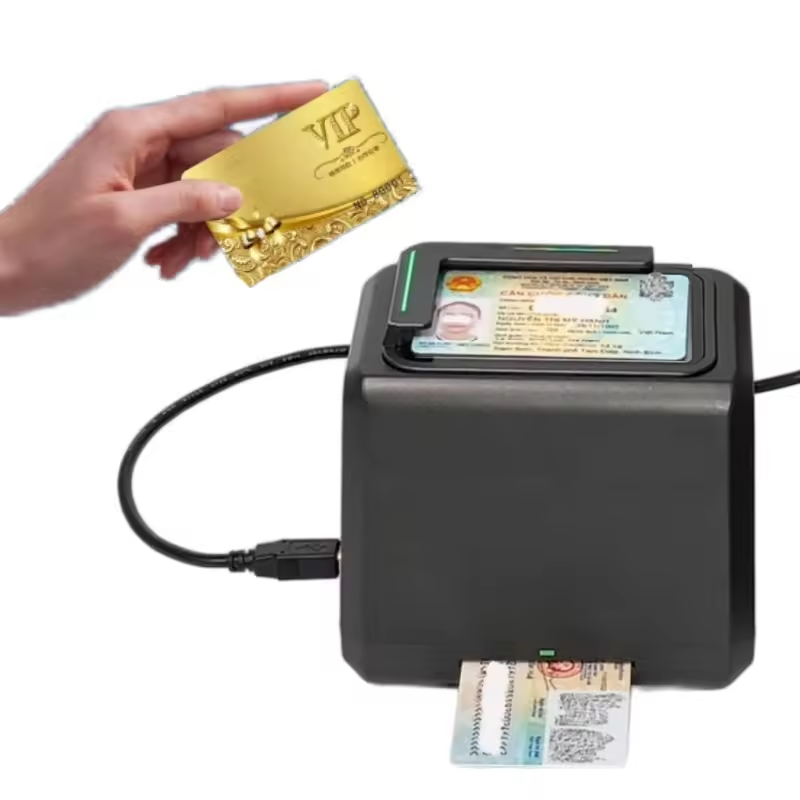
Step 3: Try a Dedicated Scanner Device
If available, use a professional barcode scanner:
- Retail scanners
- POS systems
- Access control scanners
This gives a more accurate result compared to mobile apps.
Step 4: Check Data Output
When scanned, a valid ID should display:
- Name
- Date of birth
- ID number
- Encoded string of characters
If the scanner shows random or unreadable data, the encoding may be faulty.
Step 5: Test Multiple Times
Scan the ID multiple times under different lighting conditions to ensure consistency.
Common Issues That Affect Scannability
Even if an ID looks correct, it may fail to scan due to:
1. Poor Print Quality
Low-resolution printing can distort the code.
2. Physical Damage
Scratches, bends, or fading can make scanning difficult.
3. Incorrect Encoding
Data might not be properly embedded in the barcode.
4. Lighting Conditions
Too much glare or low light can interfere with scanning.
Tips to Ensure Your ID Is Scannable
- Keep the ID clean and scratch-free
- Avoid bending or folding it
- Store in a protective sleeve
- Ensure high-quality printing when ordering
- Test it immediately after receiving
Tools You Can Use to Verify Scannability
Here are some helpful tools:
- Mobile Apps: Fast and convenient
- Barcode Readers: More reliable
- POS Systems: Used in professional environments
- Verification Software: Advanced testing options
Beginner Mistakes to Avoid
Many beginners make these mistakes:
- Assuming all IDs are scannable
- Ignoring barcode quality
- Using low-quality scanners
- Not testing the ID beforehand
Avoiding these mistakes will save you time and frustration.
FAQs
1. Can I check if an ID is scannable without a scanner?
You can visually inspect it, but you’ll need a scanner or app to confirm functionality.
2. Do all ID cards have scannable features?
No, only IDs with barcodes, QR codes, or magnetic strips are scannable.
3. Why does my ID scan but show random text?
This usually means the data is encoded but not formatted correctly.
4. Can a damaged ID still be scannable?
Sometimes, but heavy damage can prevent successful scanning.
5. Are smartphone scanners accurate?
They are useful for basic checks but not as reliable as professional scanners.
Conclusion
Checking whether an ID card is scannable is a simple but essential step, especially if you rely on it for verification or access. By inspecting the ID, using scanner apps, and testing with proper tools, you can quickly determine if your ID works as expected.
Always ensure high-quality printing, proper handling, and immediate testing to avoid issues later. With the right approach, even beginners can confidently verify scannable IDs without any technical expertise.